Cleaning up right-click with userChrome.css
In my previous post, I wrote about using Firefox’s about:config to cut the right-click menu from a massive 26 buttons down to just 15, decluttering the commonly used right-click menu.
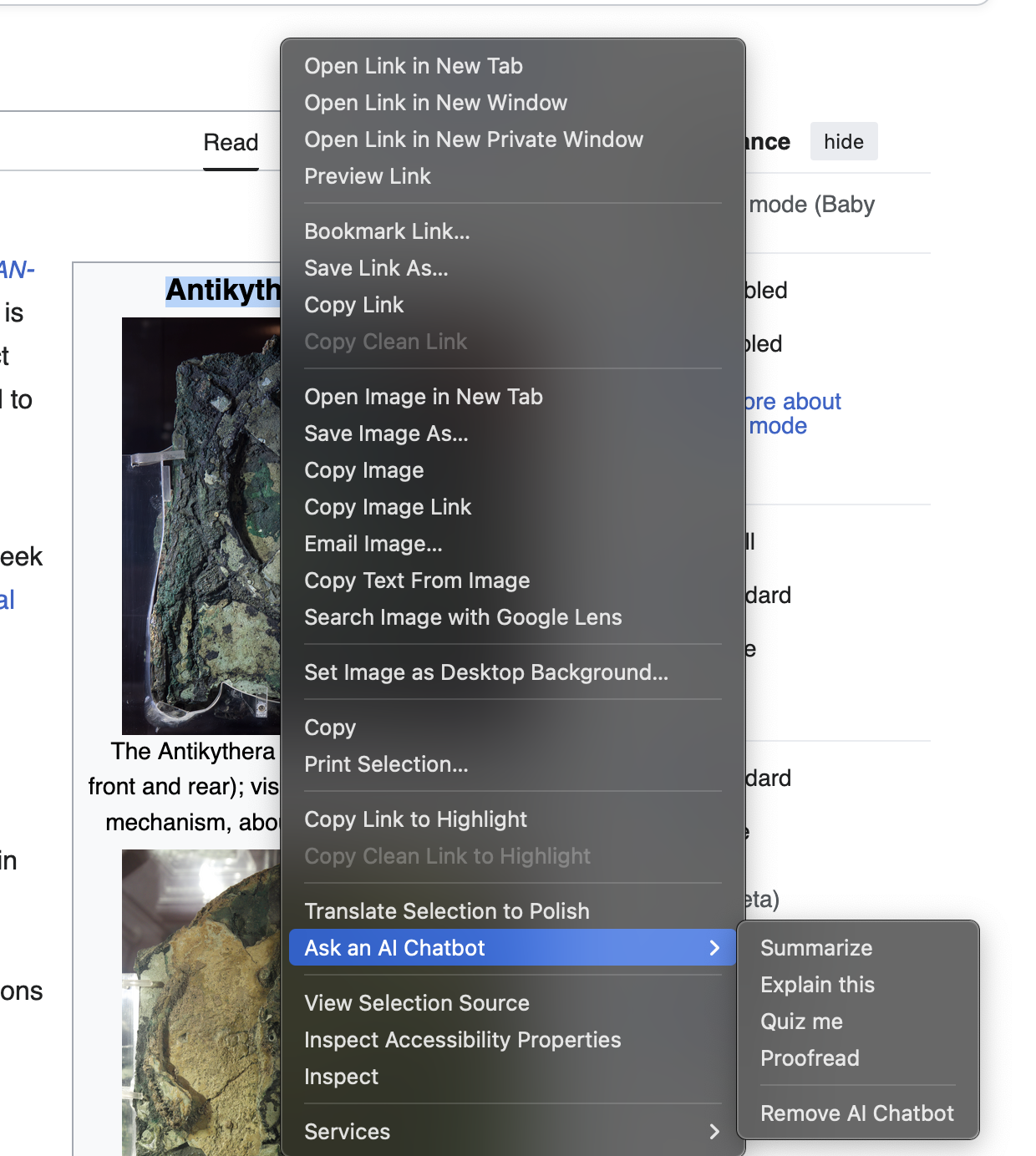 |
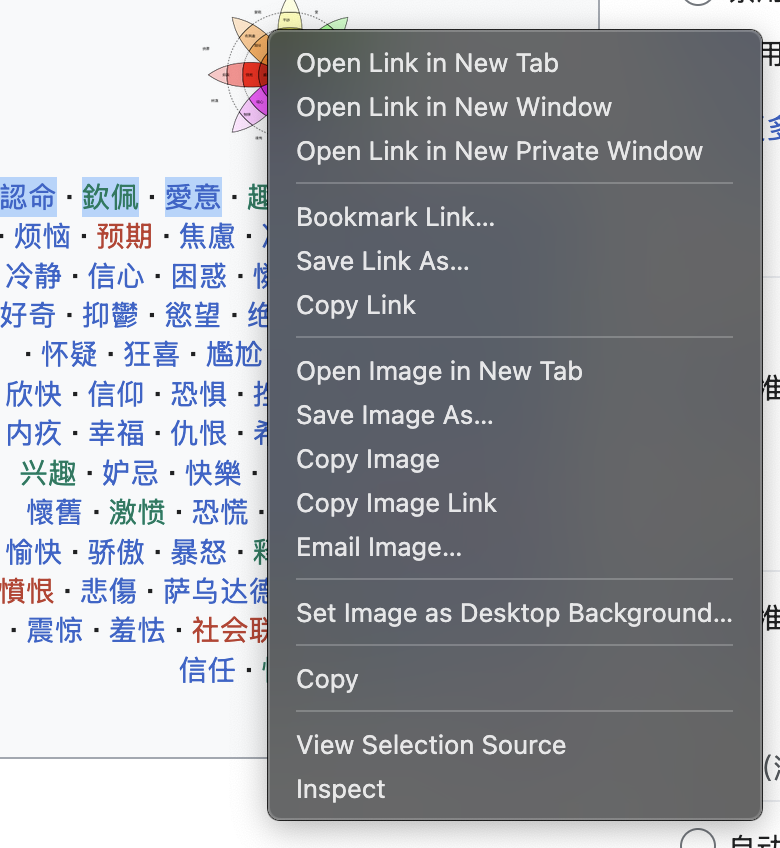 |
|---|---|
| Freshly installed Firefox, right-clicking | *Firefox right-clicking, after disabling everything above, using about:config * |
My post concluded (the technical section) that the remaining useless buttons like “Set Image as Desktop Background…”, “Email Image…”, “Bookmark Page…”, “Bookmark Link…”, and so on, could only be removed by creating (or editing) userChrome.css, which is a file containing style rules that “allows you to make changes to fonts and colors, hide unnecessary items, adjust spacing, and make other changes to the appearance of Firefox.” In other words, this is useful because instead of disabling functionality, it lets us hide any and all menu items (including the ones we couldn’t get rid of at all with about:config). This post documents how to actually do that.
Note: there are a couple of hidden menu items that didn’t show up in my previous post. For example, I also needed to hide several separators, since otherwise I would be left with stray divider lines. Among the actual menus, I’ve also hidden Email Video... and Take Snapshot..., which show up when you right-click an embedded video.
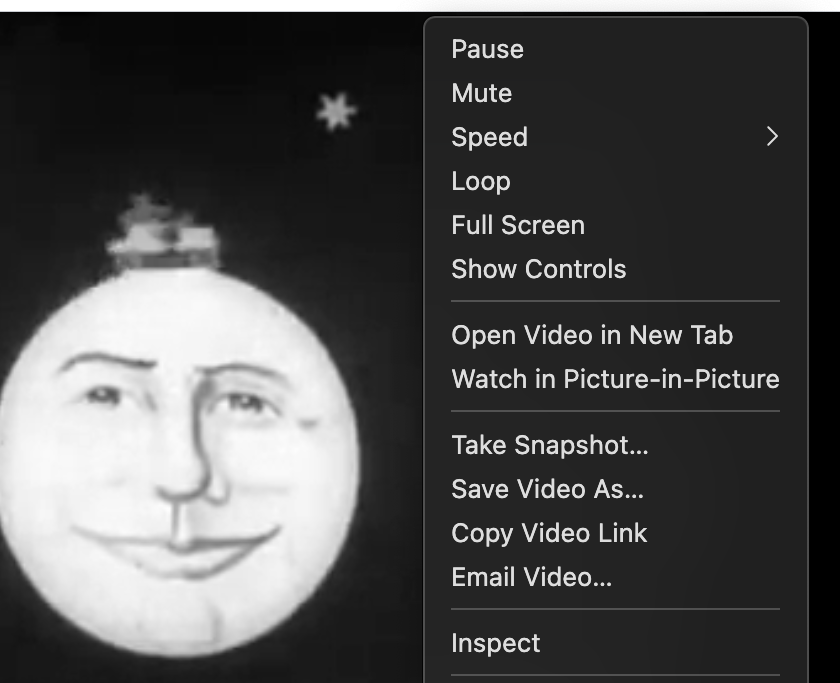 |
|---|
| Right-clicking on a video before making the userChrome.css changes |
Below are instructions for hiding all of the menu items that I find useless.
First, we navigate to about:profiles, and find the “Root Directory” of the profile currently in use (the top-most one also specified by “This is the profile in use”). Mine is /Users/jrogers/Library/Application Support/Firefox/Profiles/escb03o9.default-release. In that directory, we need to create a new directory chrome/, and in that directory, create a file called userChrome.css. Put the following in that file:
/* To default to always cleaning links by default if possible, see also:
   https://joshua.hu/firefox-always-copy-clean-link-url-userchrome-css
 */
/* Copy Clean Link */
#context-stripOnShareLink,

/* Send Link to Device */
#context-sendlinktodevice,

/* Translate Selection to ... */
#context-translate-selection,

/* Separator below "Translate Selection to ... */
#frame-sep,

/* Separator above "Send Link to Device" */
#context-sep-sendlinktodevice,

/* Print Selection... */
#context-print-selection,

/* Take Screenshot */
#context-take-screenshot,

/* Separator below "Take Screenshot" */
#context-sep-screenshots,

/* Separator above "Copy Link [..]" */
#context-sep-selectall,

/* Copy Link to Highlight */
#context-copy-link-to-highlight,

/* Copy Clean Link to Highlight */
#context-copy-clean-link-to-highlight,

/* Inspect Accessibility Properties */
#context-inspect-a11y,

/* Email Video... */
#context-sendvideo,

/* Bookmark Link... */
#context-bookmarklink,

/* Save Link As... */
#context-savelink,

/* Email Image... */
#context-sendimage,

/* Set Image as Desktop Background… */
#context-setDesktopBackground,

/* Separator above "Set Image as Desktop Background…" */
#context-sep-setbackground,

/* Bookmark Page... */
#context-bookmarkpage,

/* Separator for spelling-related items */
#spell-separator,

/* Check Spelling */
#spell-check-enabled,

/* Languages submenu in the spelling section */
#spell-dictionaries
{
  display: none !important;
}
Next, we open about:config, and then set toolkit.legacyUserProfileCustomizations.stylesheets to true. After restarting Firefox, we’re good to go: the hidden buttons are no longer shown!
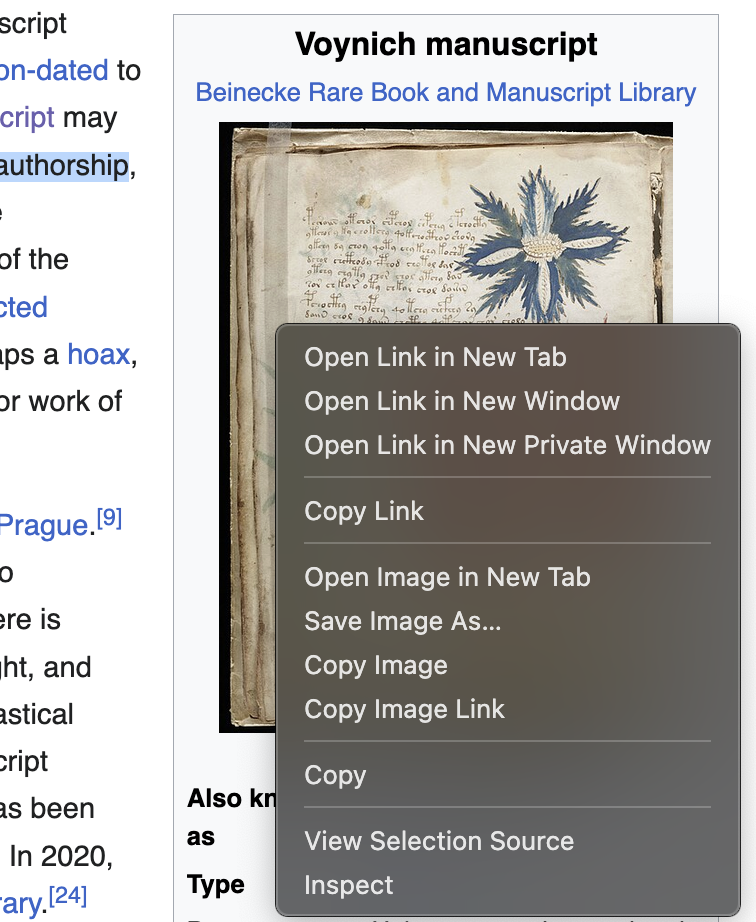 |
|---|
| Right-clicking on an image while text is highlighted, after making the userChrome.css changes |
Finding the IDs
Finding the IDs for the CSS selectors was not an easy task. There is no documentation for the IDs, viewing view-source:chrome://browser/content/browser.xhtml gives you a list of IDs but does not make it obvious which one corresponds to which menu item, so you have to use some weird inspection method to view the source code of the context menu. I will list the instructions below.
- First things first, open the DevTools/Inspector on any page.
- Click the “…” in the top-right of the DevTools, select Settings, and then at the bottom right of that page, there should be “Enable remote debugging” and “Enable browser chrome and add-on debugging toolboxes”. Tick those.
- Then open Browser Toolbox. On my MacOS, that’s under “Tools” -> “Browser Tools” -> “Browser Toolbox”. You can also open it with
Ctrl+Alt+Shift+Ion Windows/Linux,Cmd+Opt+Shift+Ion MacOS. - Under “…” in the top right, select
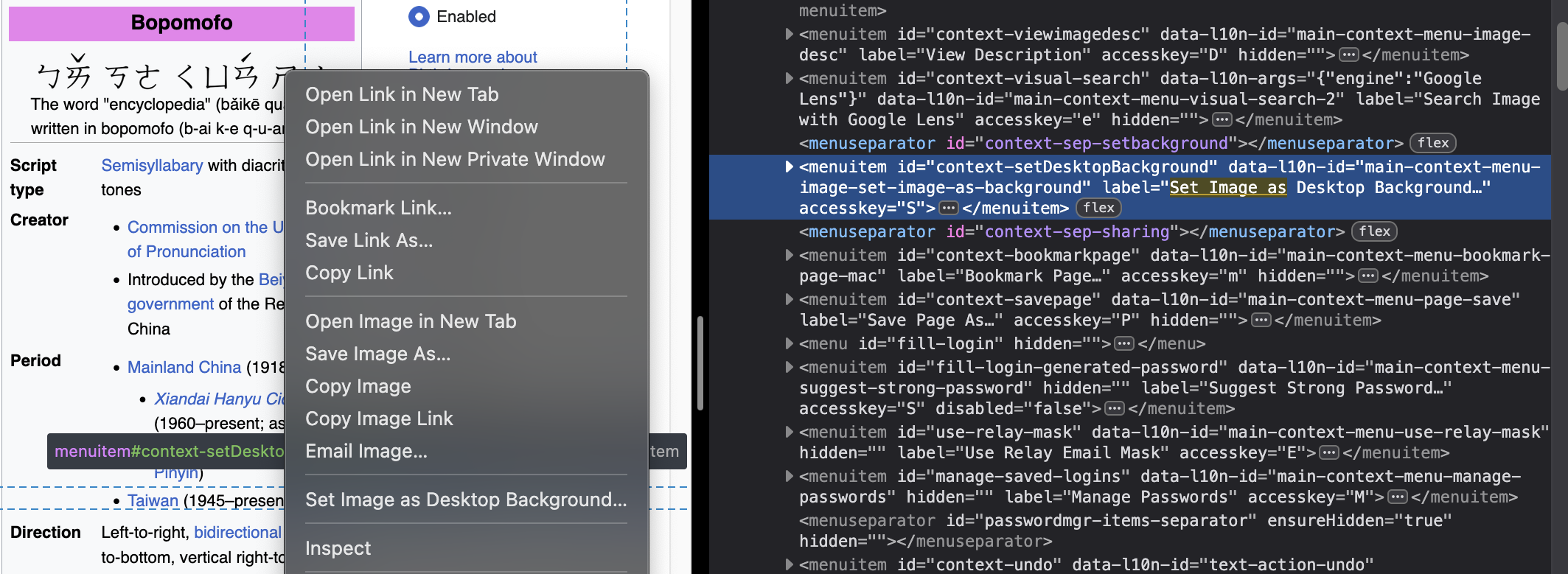
Disable popup auto-hide. If you need to hide any popups from now on, use the Escape button. - Right click on the page, and then go to the Browser Toolbox, and search for the text of any of the right-click buttons. You can find the correct IDs this way.
 |
|---|
| Firefox next to the “Browser Toolbox”, showing the “Set Image as Desktop Background” menu item/button. |
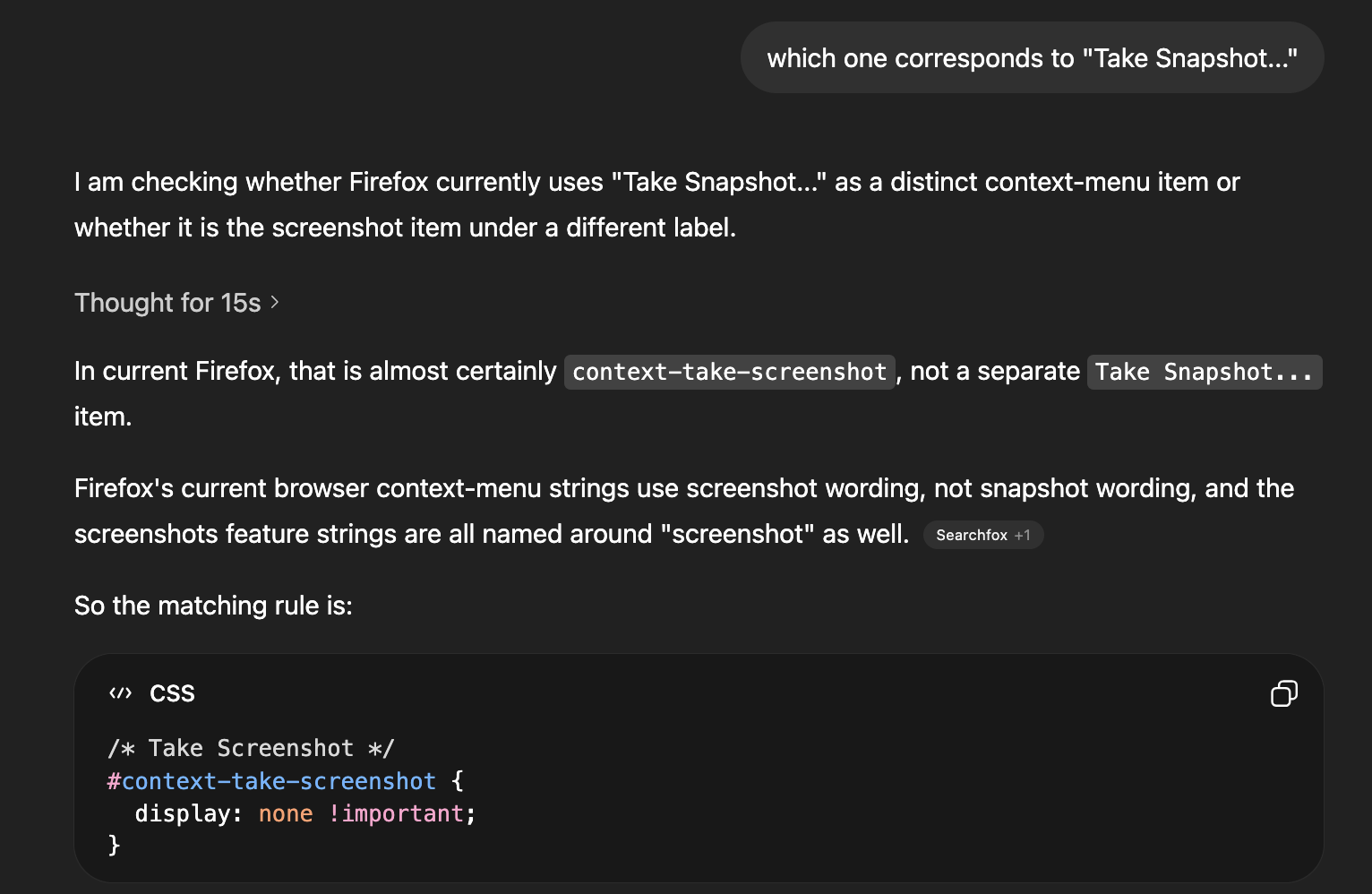
That’s quite a task. You’d think ChatGPT could produce the right CSS selectors if you asked it, but apparently not:
 |
|---|
ChatGPT 5.4 Thinking, unable to discover context-video-saveimage corresponding to “Take Snapshot…” |
Alternatively, you can match the IDs from browser-context.inc to the button texts in browserContext.ftl. But most users would never think to do that, because none of this is documented in a user-facing way.
Further thoughts
Alright, I now have my minimal set of menus when I right-click on Firefox, so I’m happy. But how about we discuss some things related to all of this stuff, and take a look at a few of the comments my previous post received on the world wide web (™).
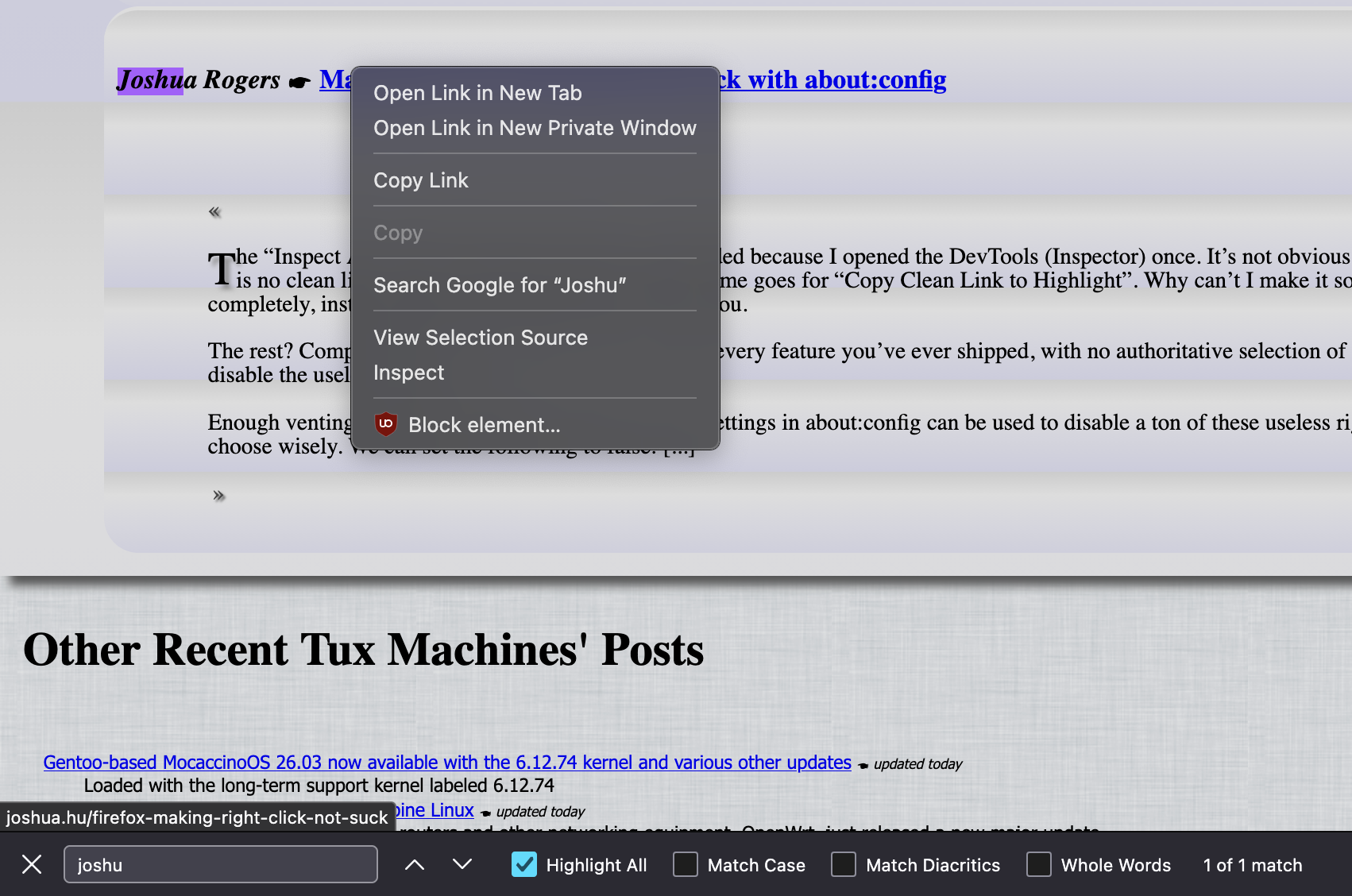
Firstly, I love Firefox. I just think nobody has given active though to these context menus for awhile in Firefox. For example while writing this post, I came across the case where a greyed out “Copy” was also visible in the right-click menu:
 |
|---|
| Searching for a word, then right-clicking a link, showing a greyed out Copy |
So we have highlighted (via search) text which we can “Search Google for ..”, but we cannot “Copy” the text. But what happens if we right-click the link again (the exact same action)?
 |
|---|
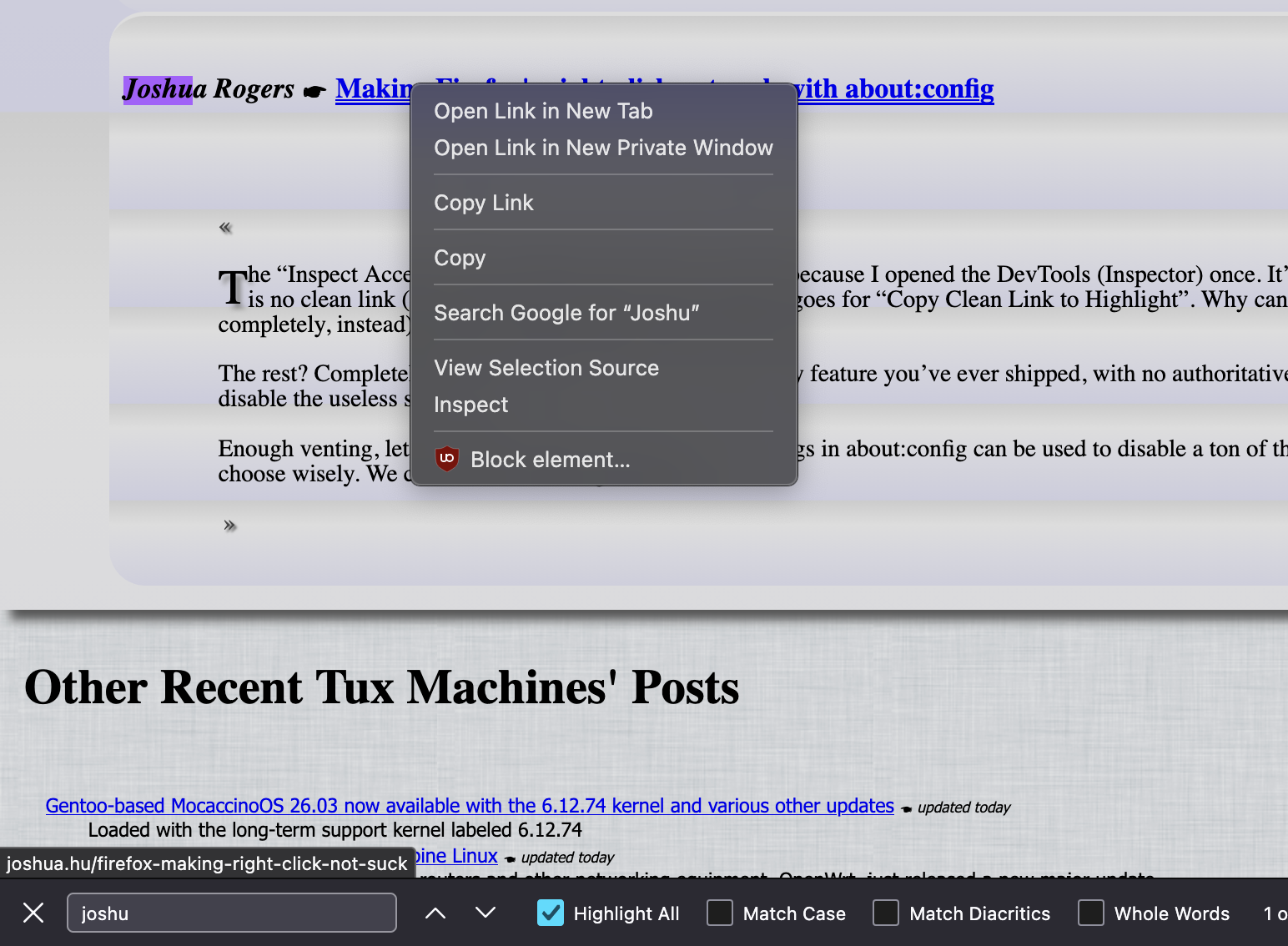
| Searching for a word, then right-clicking a link, then right-clicking the link again |
Now we can copy the highlighted text! This is clearly a bug. You can reproduce it in Firefox by visiting https://news.tuxmachines.org/n/2026/03/06/Mozilla_and_Firefox_Leftovers.shtml and searching for “Joshua”. Then, right-click the link: the Copy will be greyed out. Right-click the link again, and the Copy will be available. I have reported this bug to Mozilla.
Secondly, I recently discovered that Vivaldi (the browser made by the OG Opera people), you can actually edit context menus easily! I have no intention of using Vivaldi, but it’s very cool this exists.
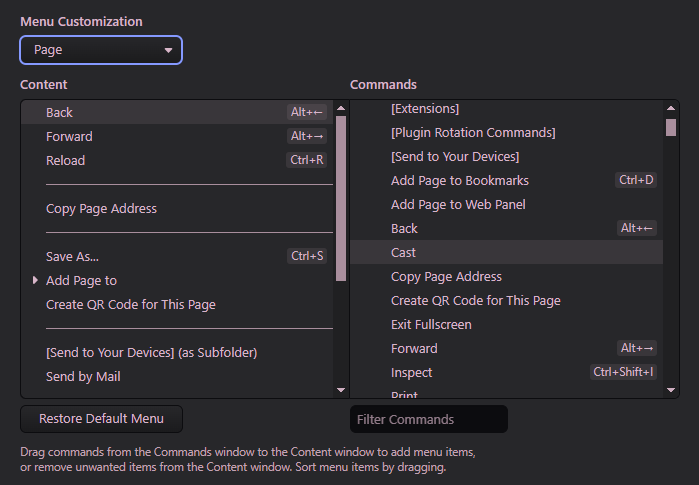 |
|---|
| Vivaldi’s context window editing functionality. |
Back to Firefox though, some of the buttons which actually require changes in userChrome.css to get rid of are kind of funny. I suspect some of these buttons are still there for no real reason; nobody has thought about removing them, and “they’ve been there forever”. Honestly, I would be very interested in seeing the metrics showing the usage of the “Set Image as Desktop Background…” and “Email Image…” buttons. I would also really like to see the metrics for how many people right-click a form to deliberately disable “Check Spelling” just in that one form (until page reload).
Some of the changes in about:config were hacks (like disabling printing completely to get rid of the printing buttons). The point that I may not have made clear is that finding the options to get rid those right-click buttons was not as easy as just going to some page and reading how to disable each of them. It involved a lot of work reading reddit posts, source code, and other random forums and websites. There is basically no documentation for the entries in about:config, and some of them are named things you would not expect at all. It isn’t “just disable them and be happy you can disable them”; you have to find out how to do that.
When doing the above research, I realized that I was wrong in my (obviously incorrect) hyperbolic exclamation of “thanks for showing me every feature you’ve ever shipped” in my last post. I came across the about:config option browser.menu.showViewImageInfo, which is disabled by default. If enabled, it makes Firefox show “View Image Info” when right-clicking an image – something I remember from probably nearly 20 years ago now.
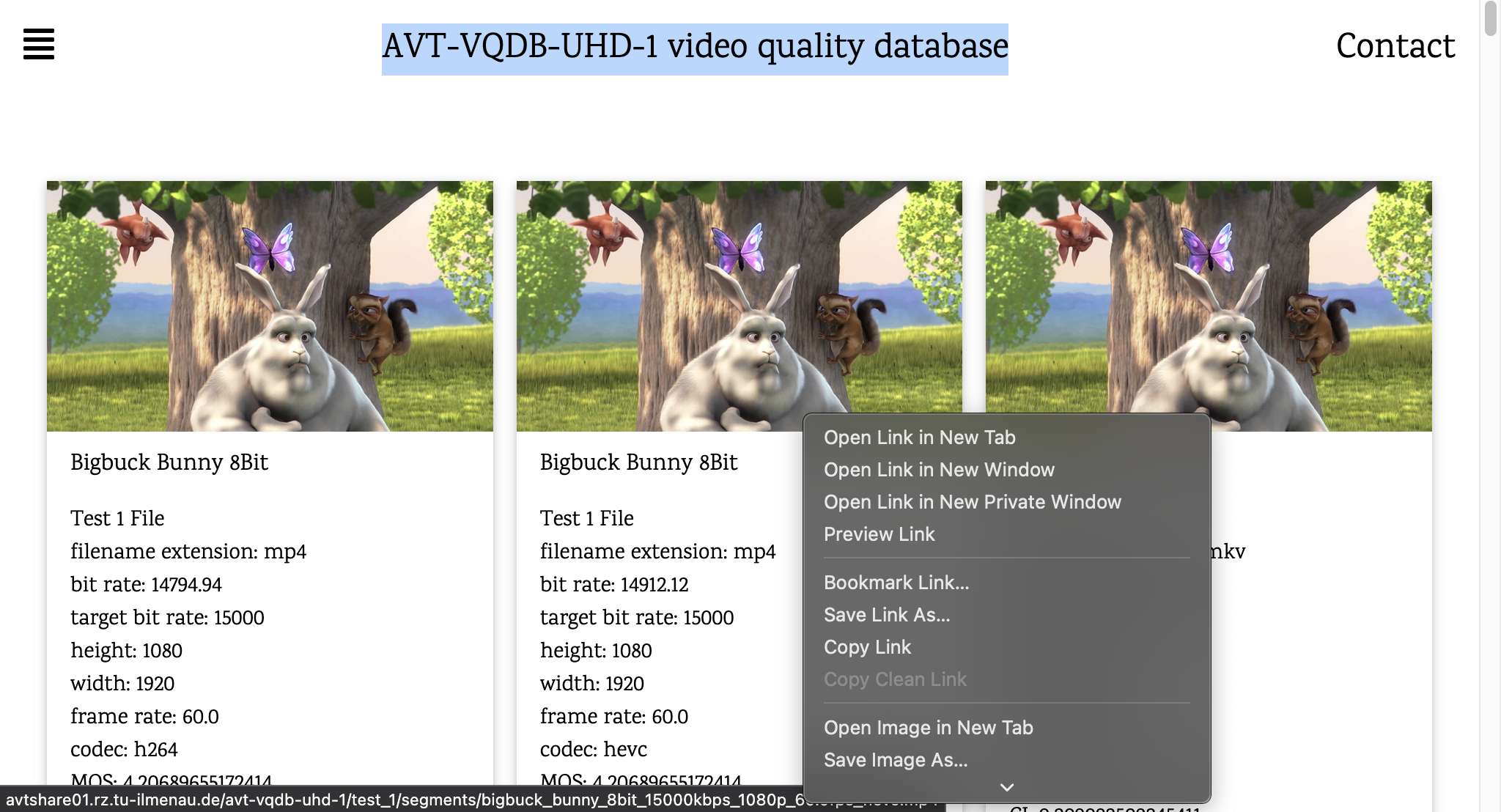
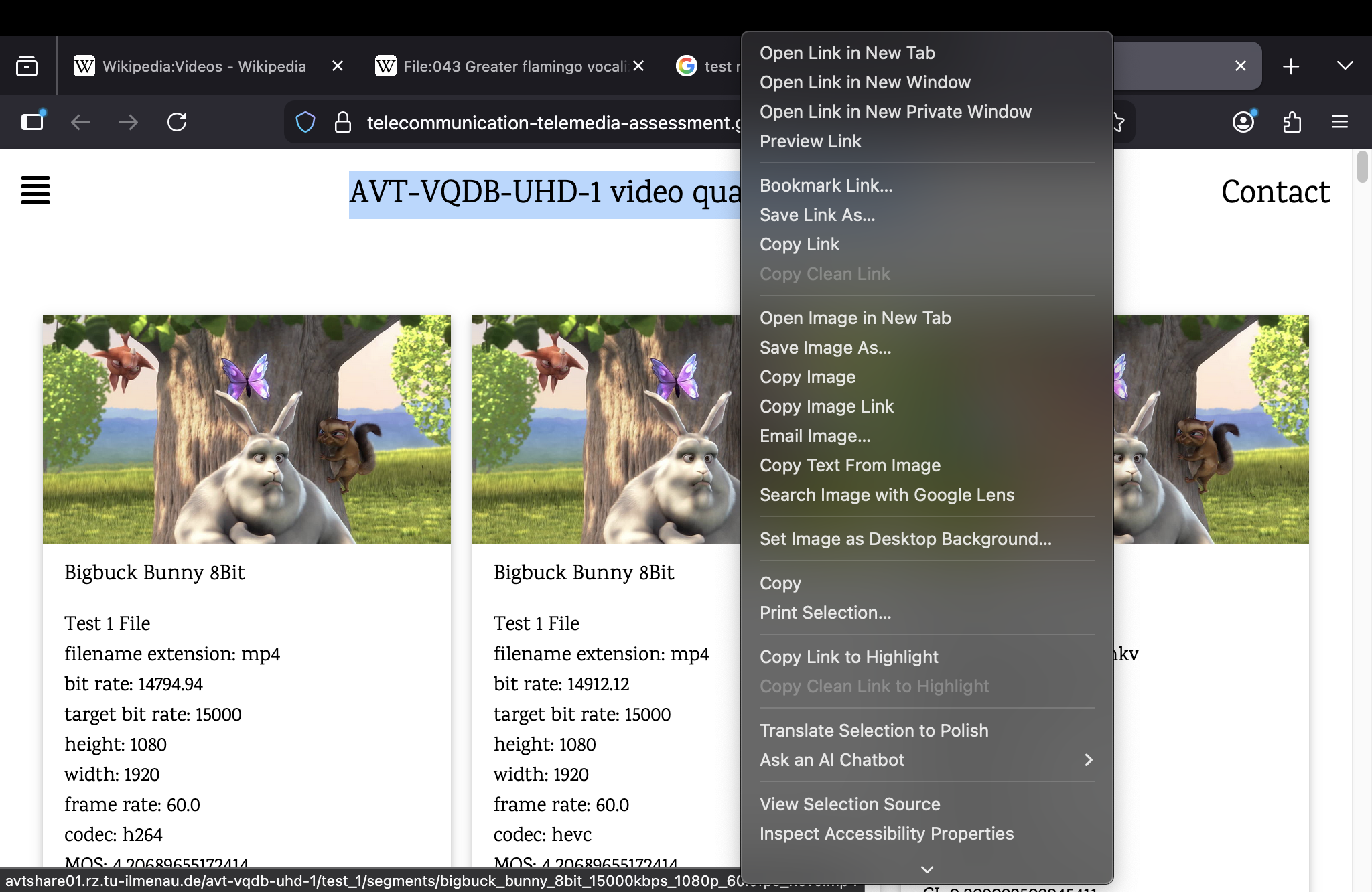
By the way, have you wondered what the “before” right-click looks like on a 1024x666 monitor? I sure did:
 |
 |
|---|---|
| Right-clicking on a 1024x666 monitor | Right-clicking on a 1024x666 monitor and scrolling the buttons |
On a 1024x666 display, Firefox first shows a compact view, and you have to scroll to see the rest (which also seems to be semi-broken on my system) to get the full view (every single time you right-click). Those screenshots are fullscreen screenshots; the menu takes up the whole screen.
Responses to online discourse
Somewhat surprisingly, my previous post got a lot of attention. Since I love trolling, rage-baiting, and stirring the pot, it feels natural to come up with some responses to the amusing comments I have seen (and also some real responses to constructive comments).
privacy.query_stripping.strip_on_share.enabled – Removes the “Copy Clean Link” / “Copy Link Without Site Tracking” buttons
Surely that’s backwards and you meant to remove the “copy link with tracking garbage”, right?
That would be my first preference, yes. Ideally, I could have a single “Copy Link” button which automatically copied the clean link (if available), otherwise falls back to the link verbatim. This is not an option. If I remove “copy link with tracking garbage”, the “Copy Clean Link” only lets me copy things when some type of garbage is in the link to be removed, in the first place.
of which 2 are greyed-out (aka: fucking useless)
It actually makes sense, because instead of wondering where the option is, you learn that it is not applicable in the given context. It also supports the spatial memory you have of the surrounding options.
You’re right. But in this case, that button is greyed out 99.95% of the time. When I want to copy a link, I don’t want to have to look at possibly the greyed out option first, I just want to copy the damn link. Give me an option to universally copy a cleaned link if it’s available, otherwise use normal copy.
In an alternative timeline, Firefox makes their context menu really short and someone writes a blog post ranting about how it deprives functionality from power users.
Correct.
In an alternative timeline, Firefox makes their context menu really short and someone writes a blog post ranting about how it deprives functionality from power users.
This is just a silly excuse to do nothing to clean your garbage. Easy customization with thoughtful defaults is an easy way to make everyone happy
Correct.
[Your post says there are seven dividers.] There are actually eight dividers.
Correct. Thank you.
I wonder when was the last time any user used the “Email image” feature.
Intentionally? I’ve only ever “used” it when trying to copy a link to an image.
Correct.
The opening rant is quite fun to read. It’s nice that it’s possible to clean up the context menu in the config.
Thank you. It was supposed to be amusing; written for people that see the absurdity of some of the small things in life, by the people that see absurdity of some of the small things in life.
The article’s author doesn’t appear to be particularly tech-literate. I flagged the post on the grounds that it doesn’t meet HN standards in general.
I have now printed this out (not from my Firefox browser of course, since I disabled printing) and put it in a frame on my wall. Thank you.
Yes, I for one love all the options… dont hide menus from me, I have a big screen.
I don’t have a big screen.
“If you disable a bunch of basic, useful features like printing and translating, you won’t see them in the menu.” BRILLIANT!
Also you can turn half that shit off in the regular settings.
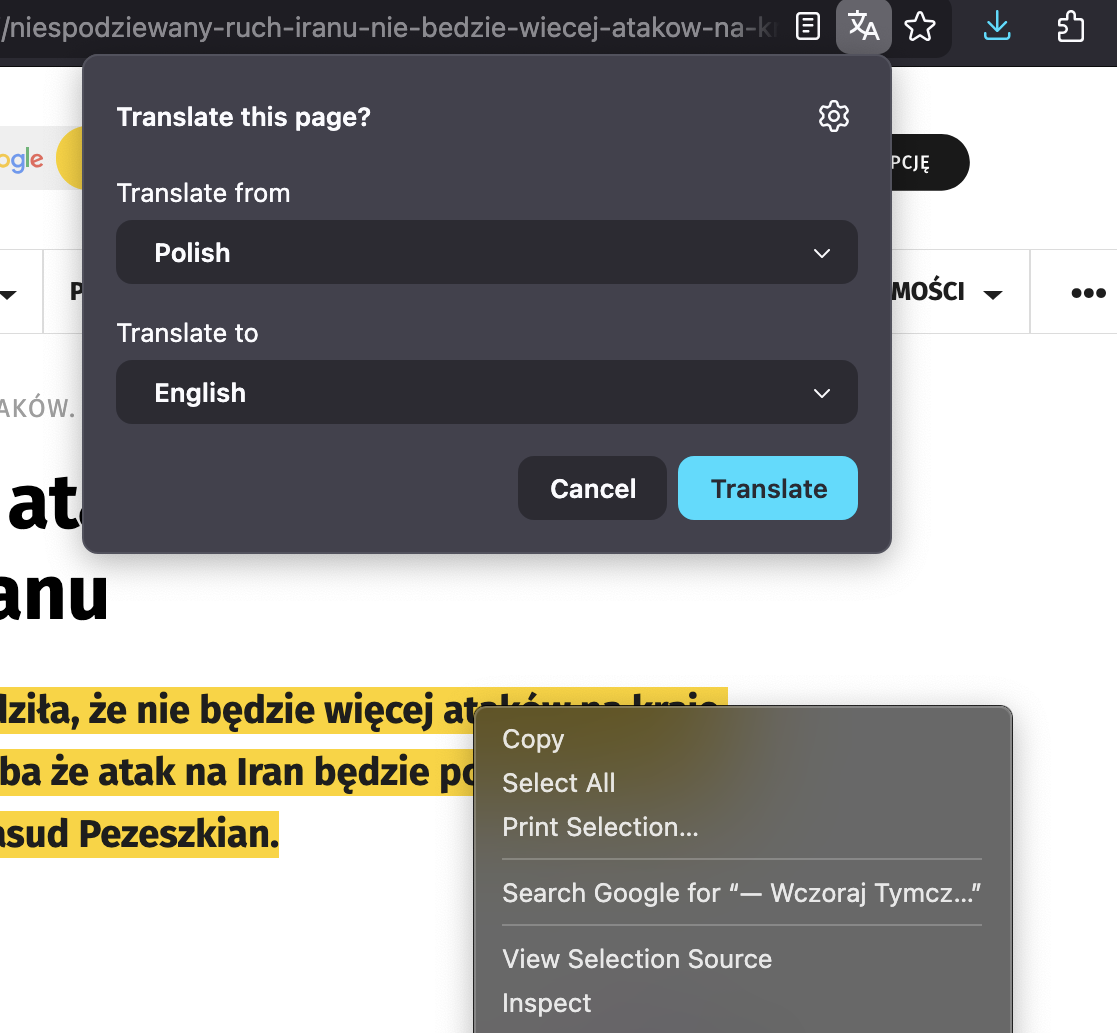
Actually mister or misses reddit user, that option just disables the right-click selection-translation. Note the translation is available, but the menu doesn’t show us the “selection translation”.
 |
|---|
Disabling browser.translations.select.enable just removes text-selection translation, but does not remove the full-page translation |
Yeah, former Opera employee making fun from Firefox. So cool.
To respond: Remember you just took Google software, changed skin, added more telemetry and spying eyes, and call it a browser.
That’s a nice ad hominem fallacy. Not only did I join Opera way after that happened, I also never used the Opera browser (regularly) while working there, and have always advocated for usage of Firefox due to my support of browser engine diversity and general low amount of (fewer than other browsers) user-hostile activity/design.
Honestly, “go into about:config and flip some switches to remove stuff” is about as easy as I could imagine for allowing people to customize it. What would you suggest?
It’s more like, “go search online and hope that somebody has commented somewhere which switches to flip because there is no documentation for about:config switches.”
Mine also isn’t anywhere nearly as confusing as his by default, so this smells like a power-user-has-power-user-problems-and-solutions rant…
You reject my reality and substitute your own, without reading the very first sentence of the post, “On a fresh installation of Firefox on MacOS”. The following command was run to use a default profile:
TMPPROF="$(mktemp -d /tmp/ff-tmp.XXXXXX)"
/Applications/Firefox.app/Contents/MacOS/firefox -no-remote -profile "$TMPPROF"
The blog post is also complaining about the options to create a screenshot, copy a link to a text fragment, copy a link without trackers, debug accessibility issues, auto-fill a form, and even to print the page.
I’m complaining that those options are displayed as buttons in the right-click menu, with no way to get rid of them – buttons which I do not use and never use. I do not own a printer (and my goal is to get rid of the button, not disable printing).
“Customize Context Menu” under Edit would be nice and easy for even regular users to discover and take advantage of.
Why is my Edit menu so long? What is this “Customize Context Menu” thing that I never use, or will use at most once a year?
Well it’s pretty simple, in’it? You don’t display the “Customize Context Menu” button every time you right click.
I am thankful for the menu junk drawer in Firefox. Better to give me everything I can discover in a menu rather than make a zillion fugly buttons and cluttering up the chrome
This is what is known as the logical fallacy of “false dichotomy”. Do not give me a menu junk drawer, and do not “make a zillion fugly buttons and [clutter up the browser]”.
This is disabling features entirely - I take screenshots using the Firefox feature sometimes, but never with the right click option. Same for autofills, printing, and devtool a11y features. I don’t like the clutter, but I can’t disable these either.
That was written in the post. If only Firefox made it easy to get rid of the right-click buttons, then you wouldn’t need to disable those features, am I right?!
The “Email Image…” one is infuriating. Who right clicks an image to email it to someone in 2026? And if it’s you, could you help me understand why??
Every random app now-a-days has share buttons. Why shouldn’t the browser have on, when it is inherently about browsing a network resource?
That could be a good idea! Have a “Share” button instead of individually labelled buttons for different types of sharing. Or just let me get rid of those buttons :).
Some of these complaints feel like they aren’t specific to Firefox at all, but are UI conventions that used to be ubiquitous and no longer are, much to the chagrin of those of us of a certain age.
My complaint is the buttons are useless and I will never in my whole life click them. Do not show them to me. There are people that love to complain and do nothing to try to fix what they’re complaining about. I found a solution to my problem (my installation of the browser and my preferences), and wrote about it. Maybe others find their right-click menus bloated.
Why do all of the above have …? No clue.
The “…” convention is used when menu options open a dialog box rather than just immediately doing the action.
It seems that I upset a lot of people with this line in my original post:
We still have the following useless buttons though: “Bookmark Link…” “Save Link As…” “Email Image…” “Set Image as Desktop Background…” “Bookmark Page…” Why do all of the above have “…”? No clue.
It seems quite a lot of people took this to mean that those buttons are useless because they have “…” at the end of their texts.
I have a lot of questions about the person who wrote that blog post, in that it seems to be a quick hot take without any digging into the reasons why things are the way are
Blog first, ask questions later? It’s like c’mon man, have at least a little bit of curiosity…
What questions? There are a ton of useless buttons that I will never click. I don’t care why they are there. I don’t care why “…” is at the end of those texts. I don’t care why a button which is greyed out 99.95% of the time I right-click a link, are greyed out. I am not questioning those things – I am removing them.
Before tearing something down, ask why it was built.
I do not care why those buttons which I do not click were built, or why “…” is at the end of the ones I cannot remove with about:config.
Did you really make a blog post to tell the world that you don’t know some things? That’s not usual.
I wrote a blog post telling the world that I find nearly half of the right-click buttons in Firefox useless, and how I removed them. I also included in the ~800-word post a single sentence saying that I don’t know why all of the buttons which I cannot remove with about:config end with ....
Talk about missing the forest for the trees, really. Who cares?
In a world full of normality, who wants to be usual, after all?